Blog Archive

Nuestros Post

En Soluciones Rubarb Te mantenemos al tanto de las novedades tecnológicas día a día.

A continuación enumeramos algunas de nuestras fuentes:

Softonic

Bitelia

Mi Blackberry

Blackberry Latino

Centro Blackberry

La Blackberry

Techtastico

Con la tecnología de Blogger.
jueves, 13 de septiembre de 2012

Speed Up Your PC by Removing the Useless Apps That Come With Your New Computer

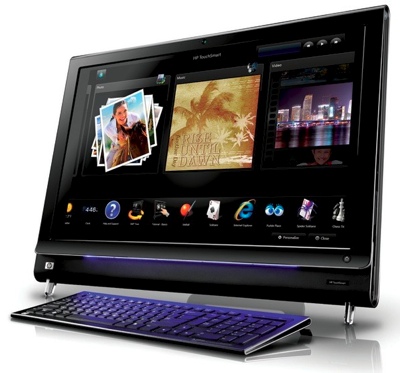
Speed Up Your PC by Removing the Useless Apps That Come With Your New Computer thumbnail Your brand-new computer should be zippy -- not pokey.

Disappointed because the sleek, sexy new computer you bought moves like a snail? The problem may not be the machine's specs. Extra applications installed on top of Windows by the PC manufacturer can bloat and slow your brand-new system. Use third-party tools, built-in utilities and a bit of research to rid your new computer of memory-hungry apps you were never going to use anyway. Be careful, though, to preserve important system features. If you remove anti-malware protection, be sure to install a solid replacement.

Como mejorar el rendimiento de tu PC eliminando aplicaciones innecesarias

Cuando compramos una PC lo primero que vemos son las características que tiene como, procesador, memoria RAM, etc. Y muchas veces creemos que va a ser la PC mas rápida del mundo, pero cuando comenzamos a utilizarla vemos que no es lo que esperábamos, y creemos que es porque tal vez algún virus ya nos fastidio o muchas otras cosas mas pensamos, pero tal vez una de las cosas que no se nos cruza jamás por la mente, es la idea de que los programas que nuestra computadora ya tiene por defecto son las que ocasionan que nuestra PC no sea lo que esperábamos, aquí te damos algunos consejos sobre algunas cosas que tal vez tienes que considerar no retener en tu PC.

Apple Announcement Roundup: iPhone 5, New iPod Touch, iPod Nano, EarPods

apple-logo-dark

Apple’s conference was full of small and big announcements and very dense. Between the announcements of the iPhone 5 and the updated iPod line-up, it is hard to keep track of all the details. It is now time to look back and read our coverage of what Apple showed to the press today.

The iPhone 5

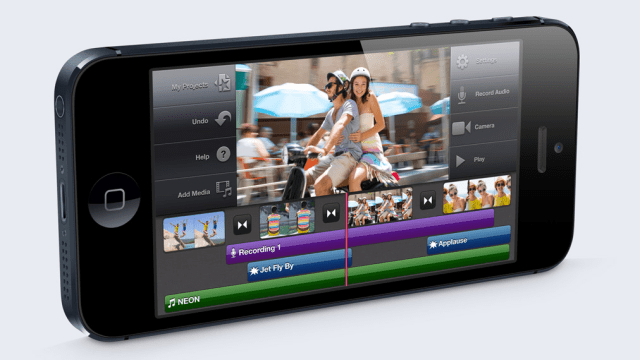
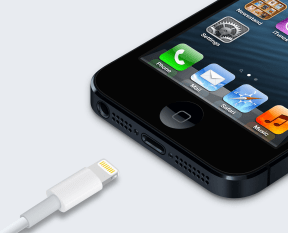
Of course, the biggest announcement was the unveiling of the iPhone 5. The rumors were true — the device sports a 4-inch display, comes with a new dock connector called Lightning (adapters are available), LTE and 802.11n dual-channel 5GHz Wi-Fi and a nano-SIM slot.

It will be available on September 21 for $199 for 16GB, $299 for 32GB or $399 for 64GB — pre-orders open on Friday. Previous iPhone models will be sold at $99 or even given away with a two-year contract. Read the hands-on and watch Apple’s video.

Apple’s New Lightning Connector: What It Does And Doesn’t Change

Lightning-connector

Apple changed its long-standing 30-pin dock connector out for an 8-pin new standard called Lightning. But what does that actually mean for users? Well the advantages are mostly passed on through hardware design — not necessarily around performance.

Here’s the skinny: Apple made claims on-stage about improved speed and reliability, thanks to an “eight-signal, all-digital” hardware design. The speed could be better, but this is still based on USB 2.0 specs, not 3.0 or Thunderbolt. That means gains will be modest, not magical. And given that Apple recently made sure that its latest notebooks all have USB 3.0, that seems strange.

But it isn’t that bizarre, really. Apple would have had to do significant redesigns on the inside of the iPhone itself to make that change, and that would have cost more money and affected margins. Engadget senior columnist and long-time mobile industry analyst Ross Rubin told me via email that, while USB 3.0 seems like a logical way to go, that likely won’t happen for a while yet, but is probably an easy switch in terms of the tech in the cabling itself.

Apple Announces iOS 6 Release For September 19th

As part of the recent iPhone 5 media event, Apple demonstrated and reviewed their next operating system update, iOS 6, for the iPhone, iPad, and iPod touch. The iOS 6 update will be available for download on September 19, followed by the sale of the new iPhone on September 21st. The 5th generation iPod touch will go on sale in October.

The vice president of iOS software, Scott Forstall, gave a basic overview of the new release which will include changes and enhancements to all the built-apps for iOS devices, including Siri, Maps, Music, FaceTime, Messages, Safari, AirPlay, and Game Center. The iOS 6 update will be free and will run on all iOS devices including and since the iPhone 3GS. Here are a few highlights.

Access Your Files From Anywhere With Google Drive [Android]

google driveIf you’re using Google Drive on your computer and you own an Android smartphone or tablet, you should install Google Drive for Android. With the app, you can access the files in your Google Drive from anywhere – just drop a file into the Google Drive folder on your computer and it will be available in the app. Google Drive for Android also incorporates Google Docs, so you can edit your documents and spreadsheets on the go.

Google Drive has support for making files available offline, which is ideal if you have a Nexus 7 (or other Android tablet), or just don’t want to use much expensive cell phone data.

Using the App

You can install Google Drive for Android from Google Play – although many Google apps come by default with the Nexus 7 and other Android devices, Google Drive doesn’t. If you already had the Google Docs app installed, you’ll notice that it was automatically upgraded to the new Google Drive.

Google Drive has both a smartphone interface and a tablet interface, so it’s optimized for the screen size you’re using it on.

google drive

Using it is simple – just open the app and select a category to browse your files. Google Drive uses the Google account you have set up on your device, so there’s no need to log in. If you have multiple Google accounts configured, you can tap the name of your account in the app to switch between accounts.

Tap a file to open it – the file will be downloaded to your device. This makes it easy to send files between your computer and Android – just drop them in the Google Drive folder on your PC and open them in the app.

Note that Google Drive for Android doesn’t work like Google Drive for PCs — files aren’t automatically synchronized to your smartphone or tablet. Files are only downloaded to your device when you open them or when you make them available offline.

Accessing Files Offline

Long-press a file to access more options. From the long-press menu, you can share files with others, make them available offline, or perform other file operations, such as renaming or deleting the file.

google drive android

Files you’ve made available for use offline can be accessed from the Offline category. Other categories allow you to view all your files, files shared with you, favorite files you’ve starred, or files you’ve recently used.

google drive android

Uploading Files

Google Drive makes it easy to upload pictures and other files from your smartphone or tablet to your Google Drive account. You can use the Upload button within the app to upload a file or select a file in any application, tap the Share button, and select Google Drive. For example, you can easily upload photos and screenshots from the Gallery app – your pictures will then be accessible in the Google Drive folder on your computer.

google drive android

Editing Google Docs

Google Drive incorporates the old Google Docs app, so you can create and edit documents and spreadsheets from within the Google Drive app. You can create a new document or spreadsheet from the New button.

To view or edit an existing document or spreadsheet, just tap it in the Google Drive app – an in-app Google Docs editor will appear. Like with Google Docs in your browser, you can collaborate with other people in real time from the Android app – any changes you make will be immediately visible to others. Other people will also be able to see your edits as you make them. Unfortunately, you can’t yet edit documents offline, although you can view them offline if you’ve made them available offline.

google drive

Google Drive is a solid Android app that’s essential to anyone that uses Google Drive on their PC. Most of the features you’d need are here, although the lack of offline editing is something that sticks out — Google will hopefully add offline editing in the future.

For more Google Drive tips, check out our list of tips and tricks for Google Drive.

Have you tried Google Drive for Android? How did it work for you? Or do you prefer another cloud storage service, such as Dropbox? Leave a comment and let us know!

Did you find this useful? Share it with others

Source http://www.makeuseof.com

3 herramientas para controlar el consumo de datos en Android

Las aplicaciones y servicios que tenemos accesibles desde tabletas y smartphones, en muchos casos, están diseñados para estar constantemente conectados a Internet y, mediante push, comprueban cualquier tipo de actualización o novedad que requiera que estemos notificados (nuevos mensajes de correo electrónico, nuevas menciones en Twitter, mensajes de Facebook, etc). Todo este tráfico de datos sumado al de nuestra propia actividad, salvo que estemos conectados a una red Wi-Fi, va consumiendo el bono de datos que tengamos contratado con nuestro operador (en el caso de tener un bono contratado) y, en muchos casos, sobrepasar este umbral suele implicar algún tipo de penalización en la factura.

Blog Archive